Stock Presets & Templates
Streamline your workflow with our ready-to-use Recording Template and Stock Vocal Presets.
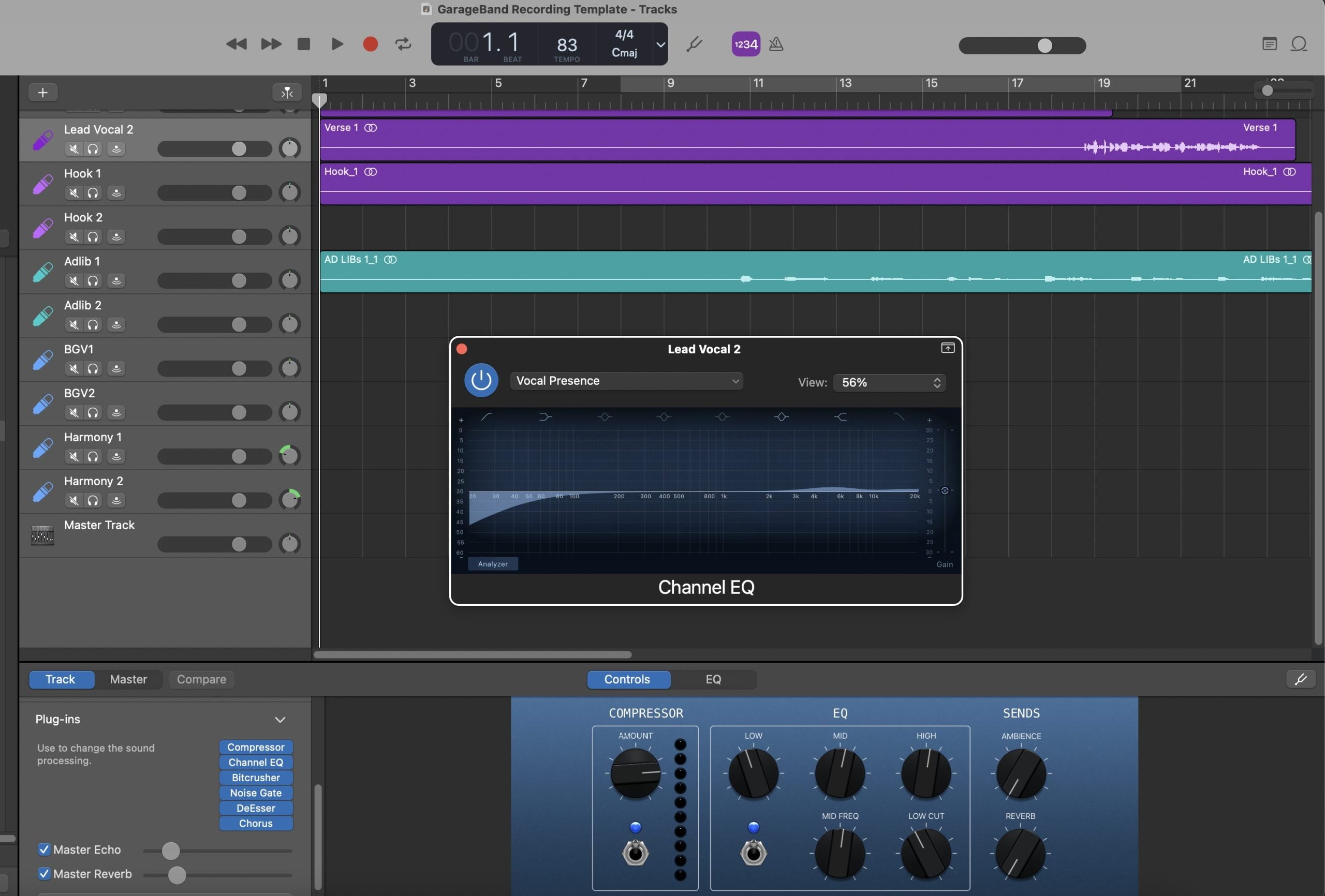
Type: Recording Template
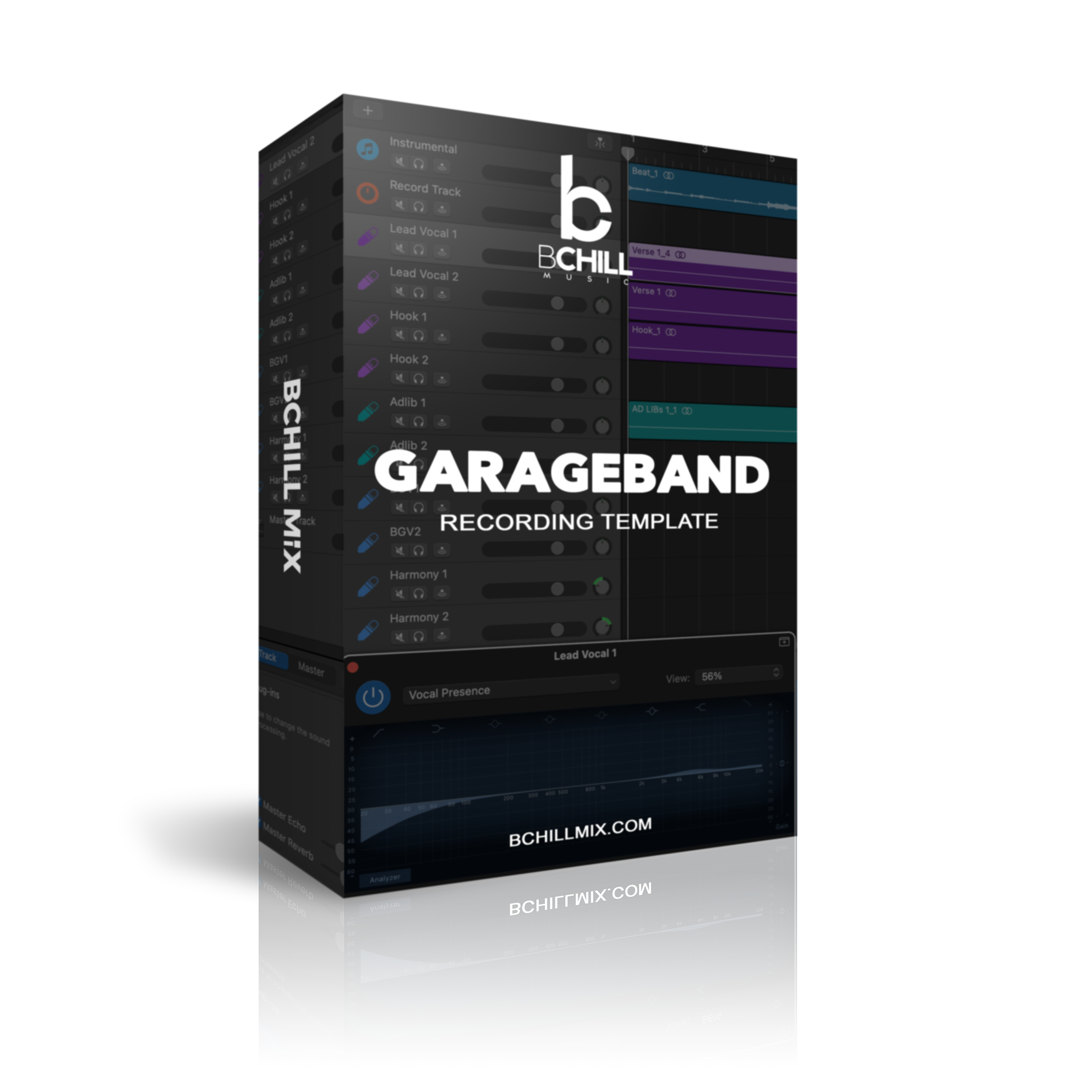
GarageBand Recording Template (Stock Plugins)
Type: Vocal Preset
Rap Vocal Preset GarageBand (Stock Plugins)
Type: Vocal Preset
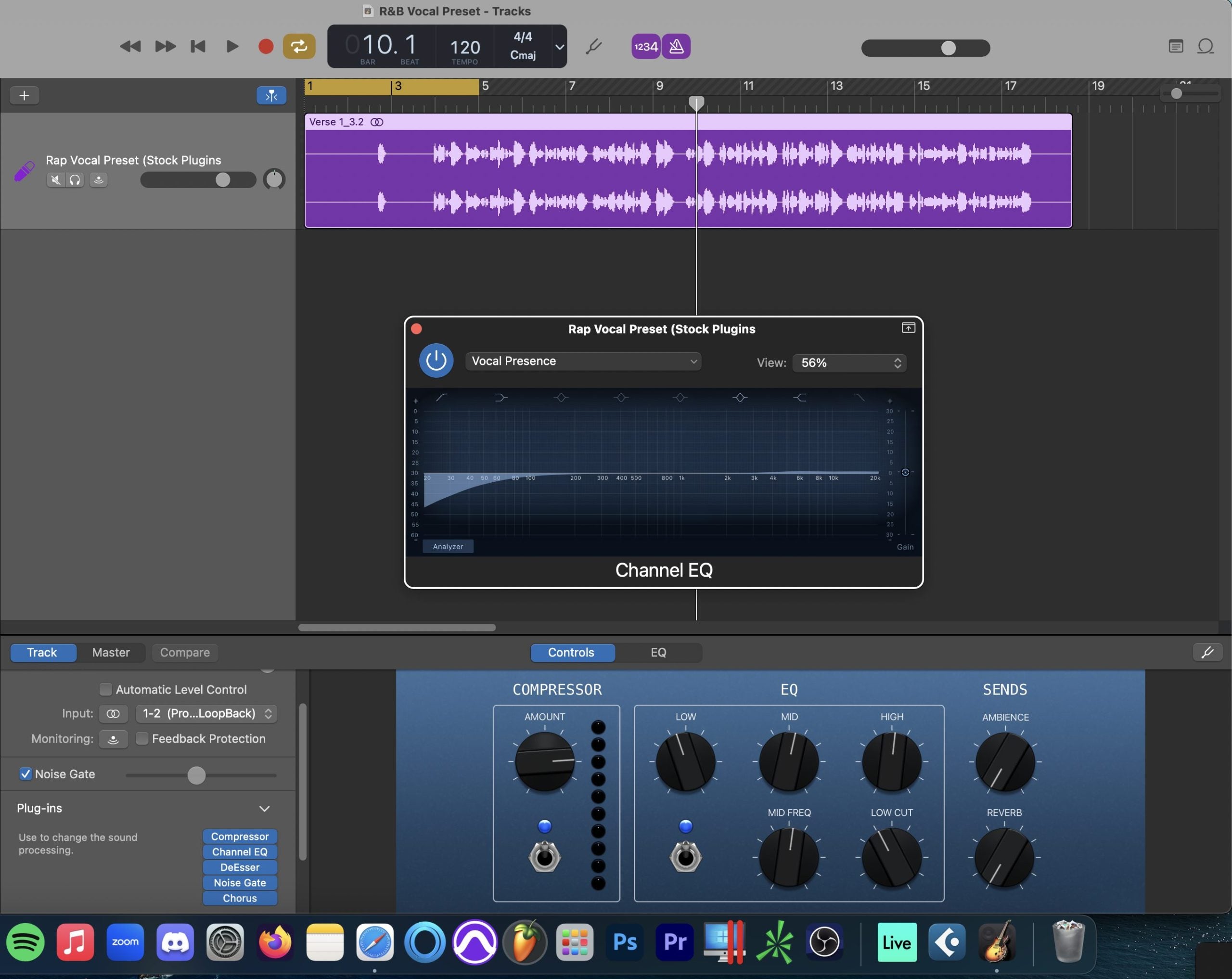
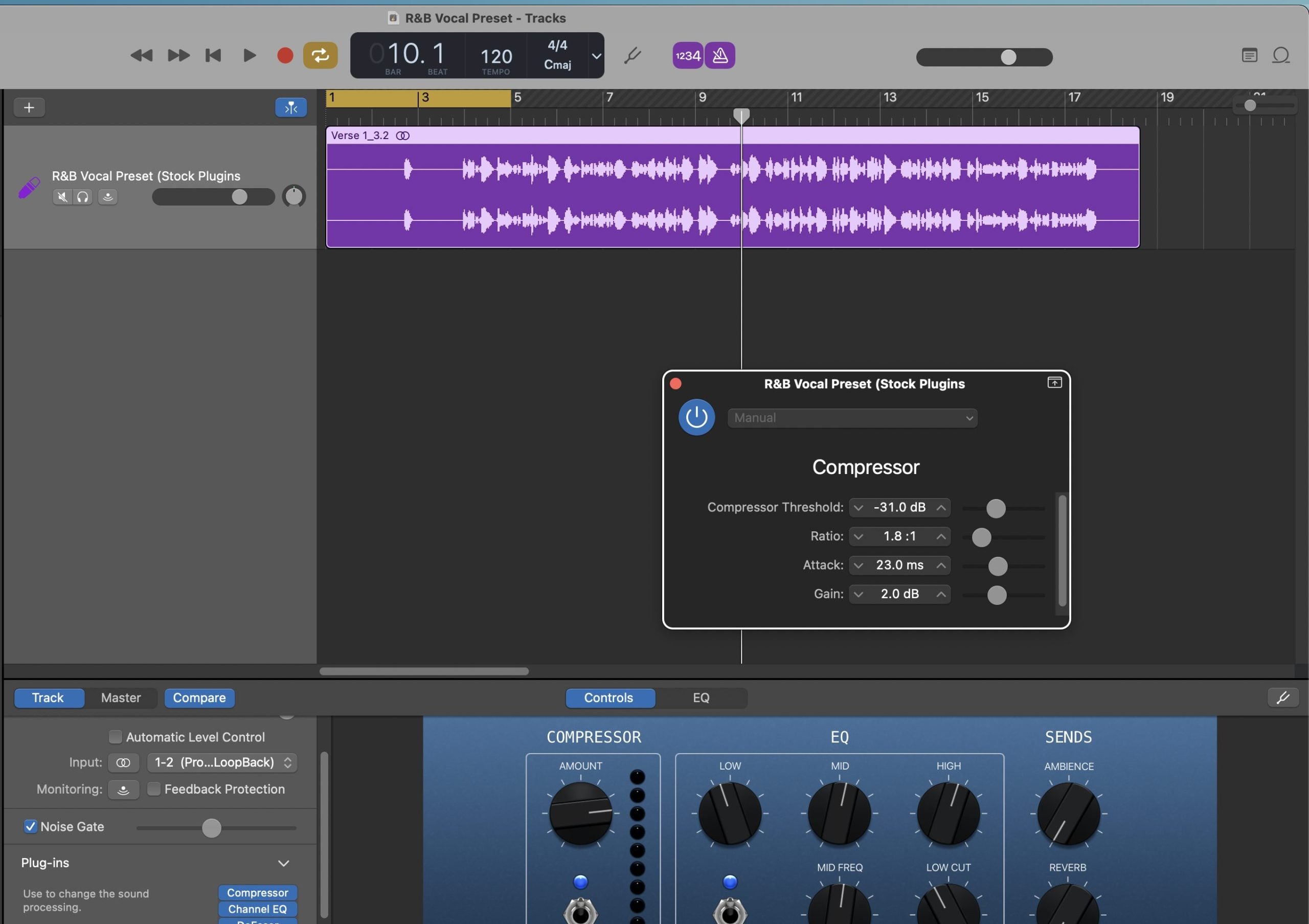
R&B Vocal Preset GarageBand (Stock Plugins)
Type: Vocal Preset
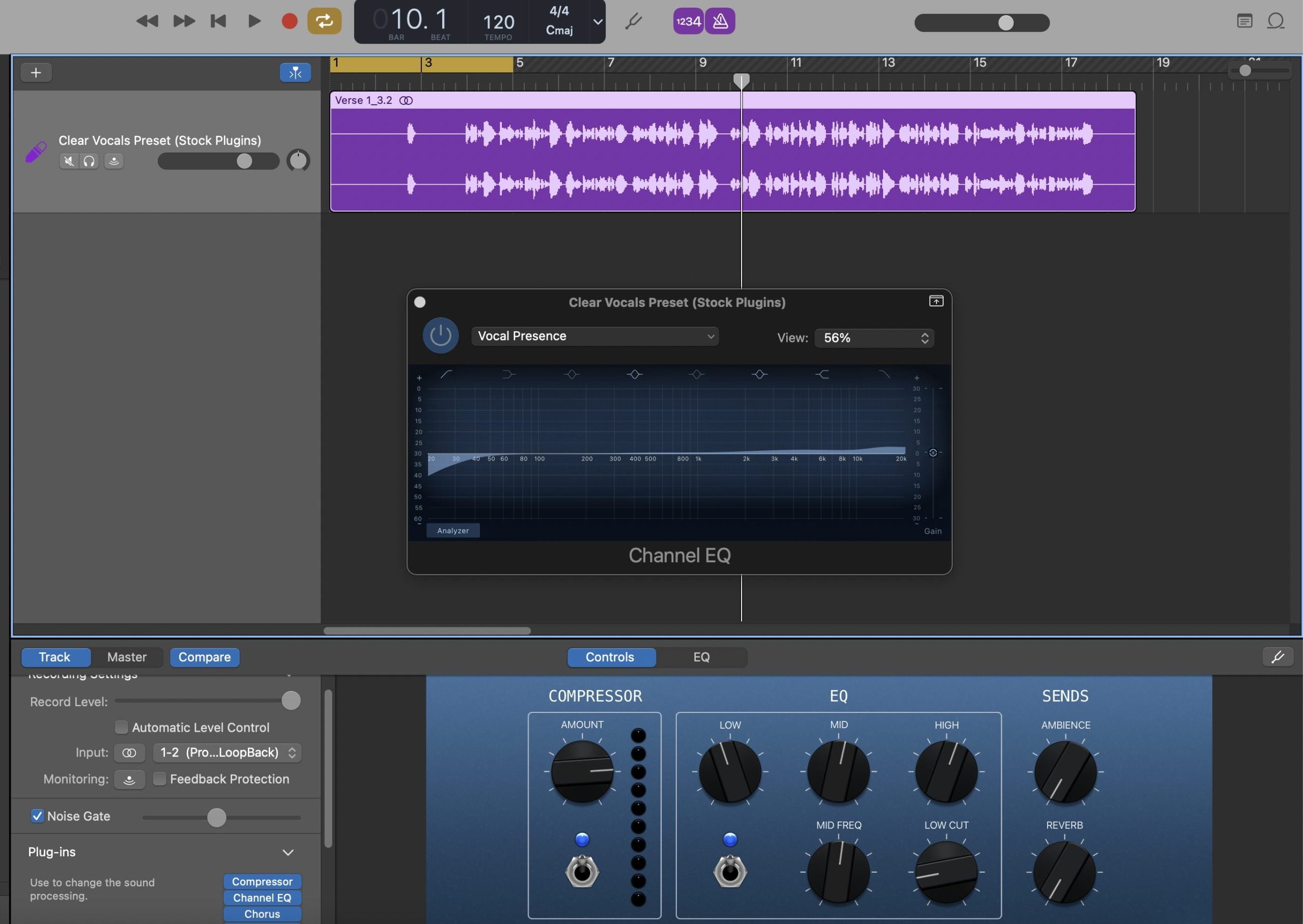
Clear Vocals Preset GarageBand (Stock Plugins)
Premium Vocal Presets
Experience unmatched sound quality with our Premium Vocal Presets, crafted with top-tier plugins

Type: Vocal Preset
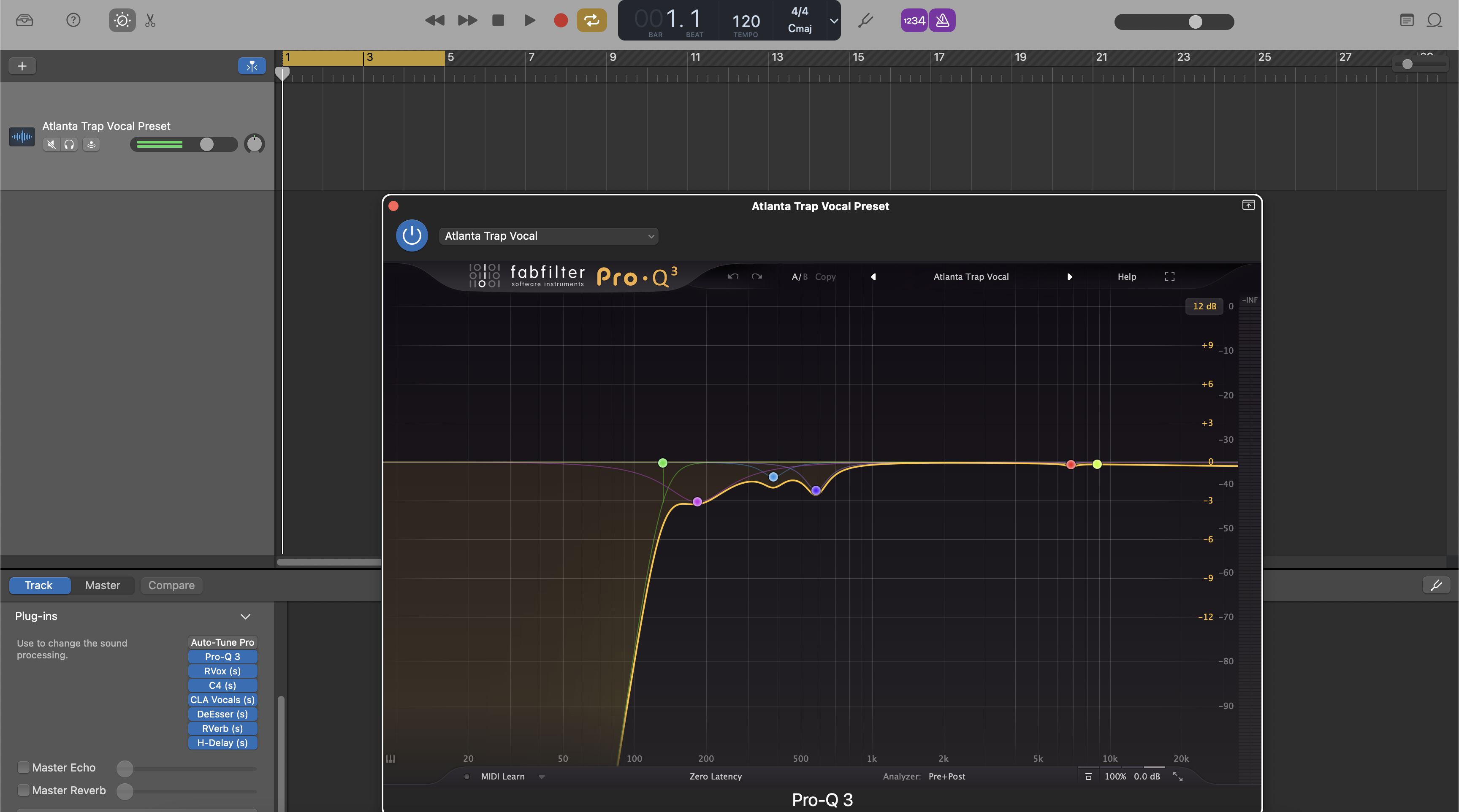
Atlanta Trap Vocal Preset GarageBand | Atlanta Trap Vocal Chain

Type: Vocal Preset
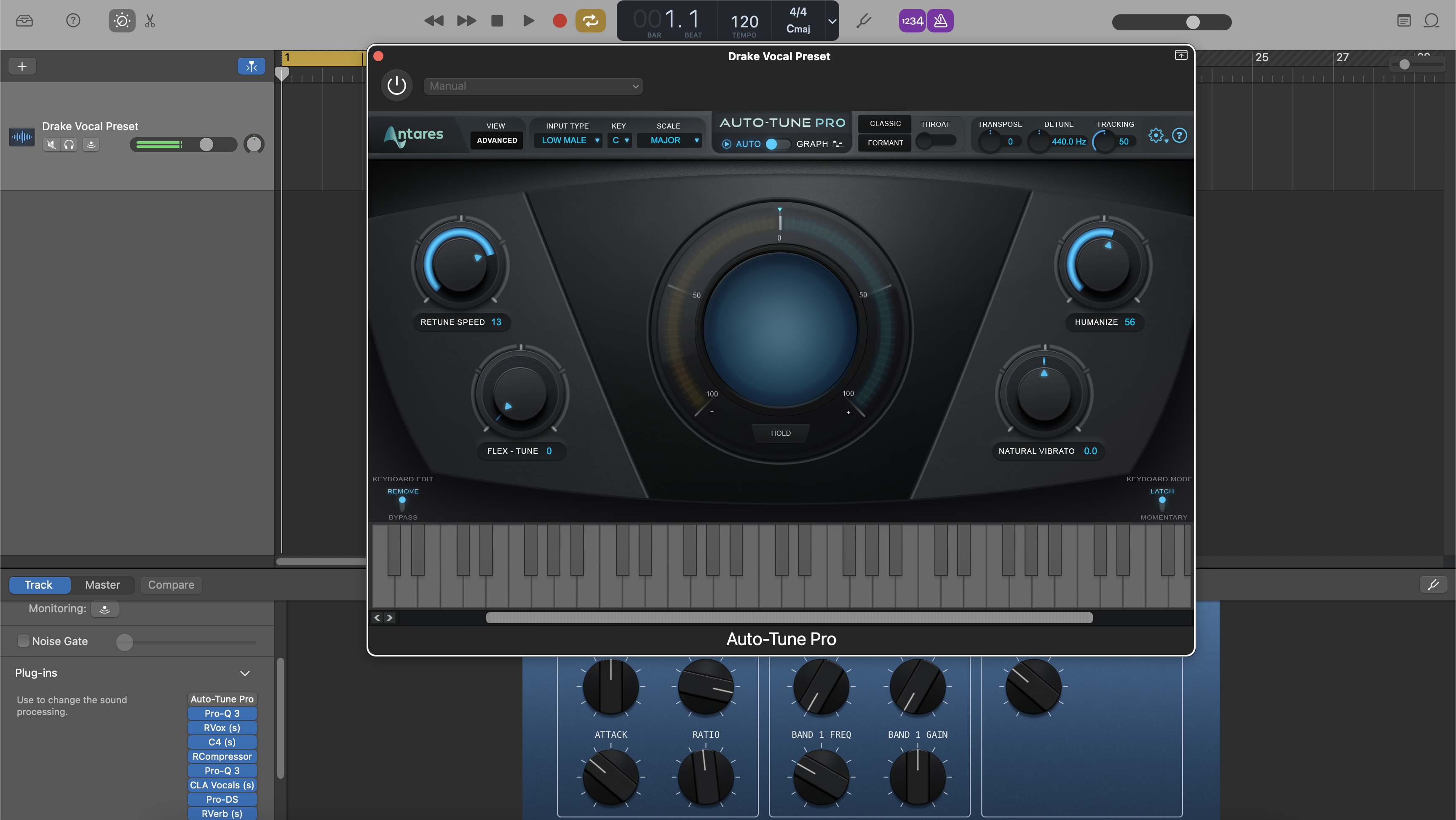
Drake Vocal Preset GarageBand
Type: Vocal Preset
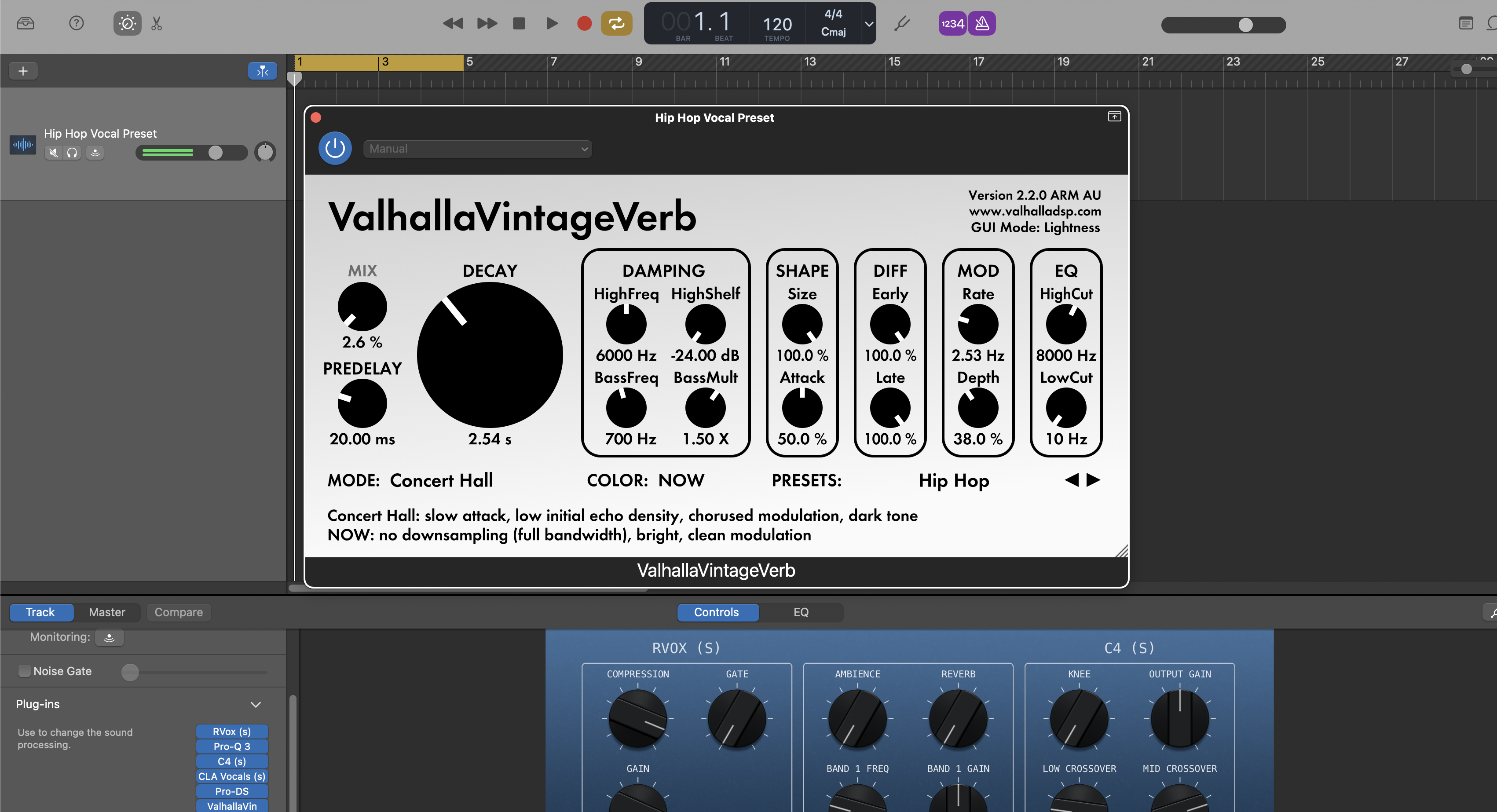
Hip Hop Vocal Preset GarageBand

Type: Vocal Preset
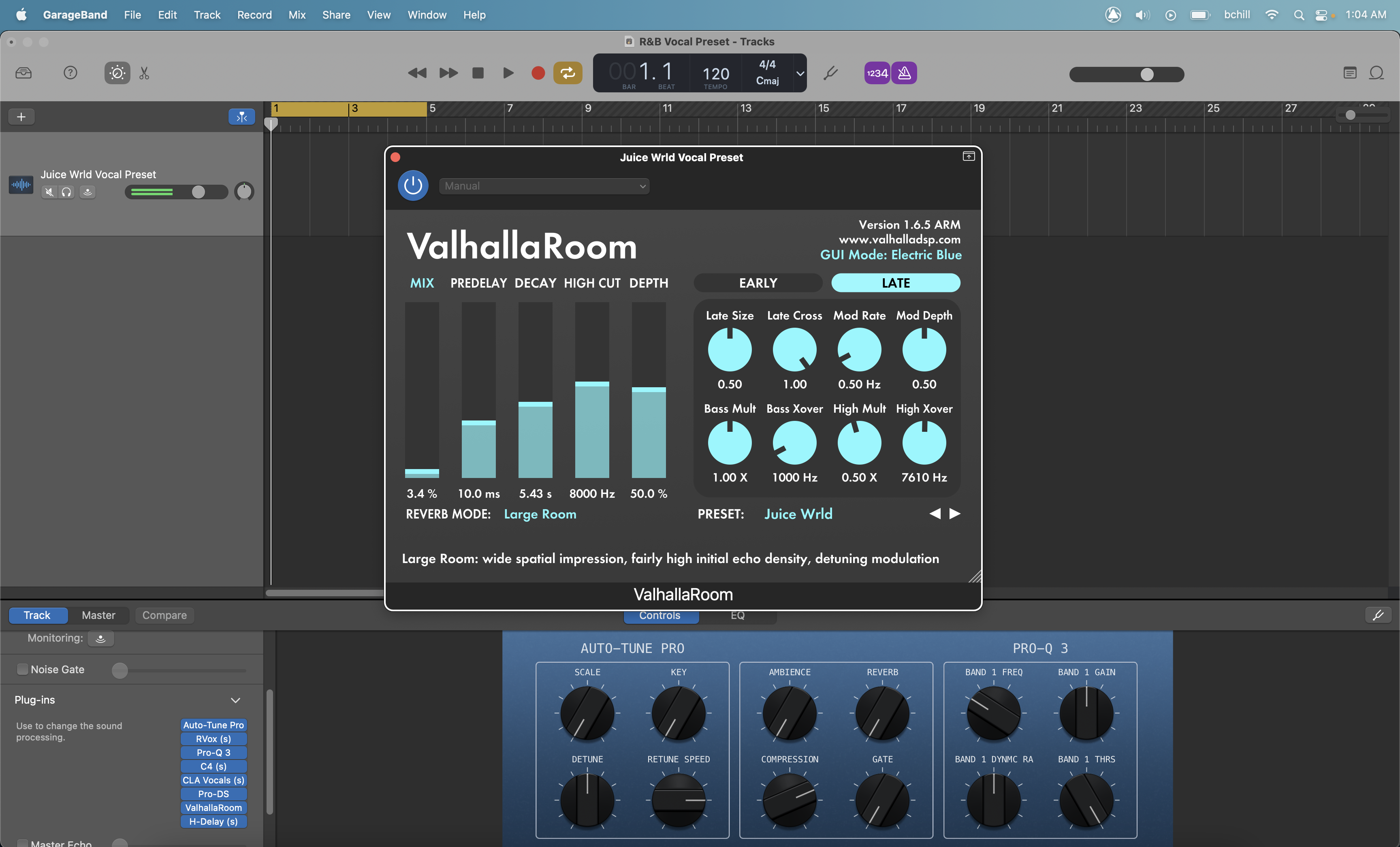
Juice Wrld Vocal Preset GarageBand

Type: Vocal Preset
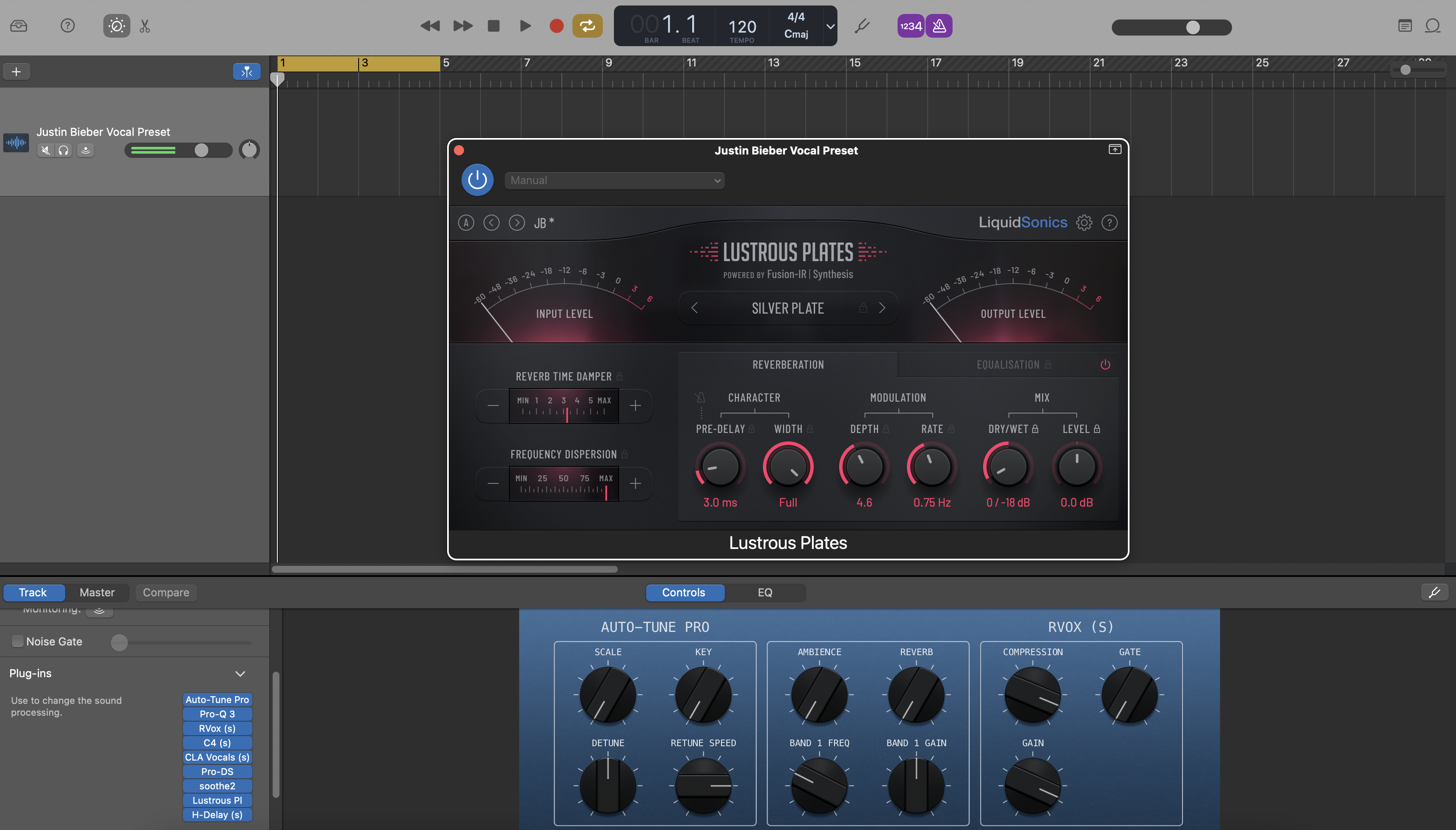
Justin Bieber Vocal Preset GarageBand

Type: Vocal Preset
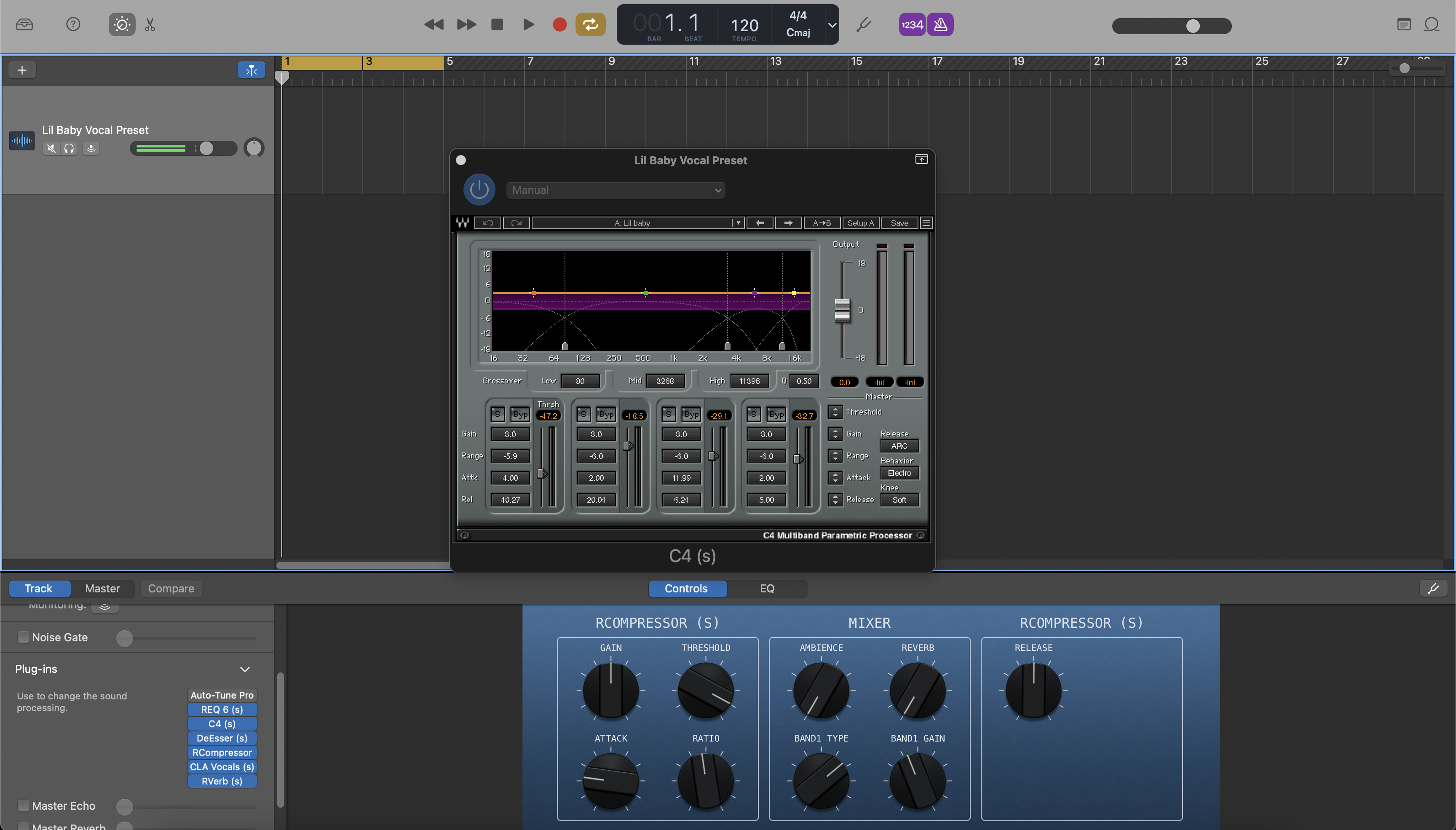
Lil Baby Vocal Preset GarageBand
Type: Vocal Preset
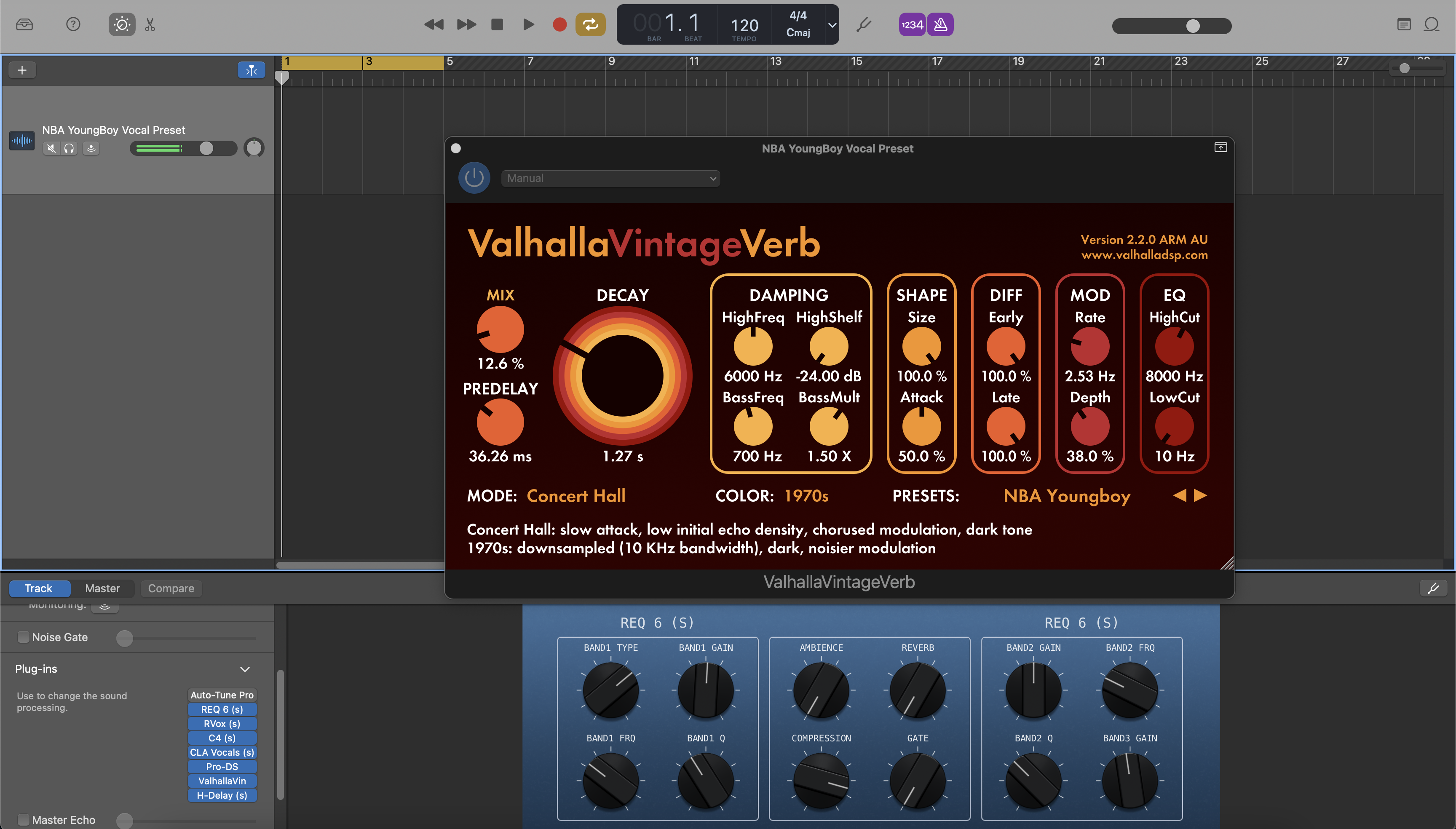
NBA YoungBoy Vocal Preset GarageBand
Type: Vocal Preset
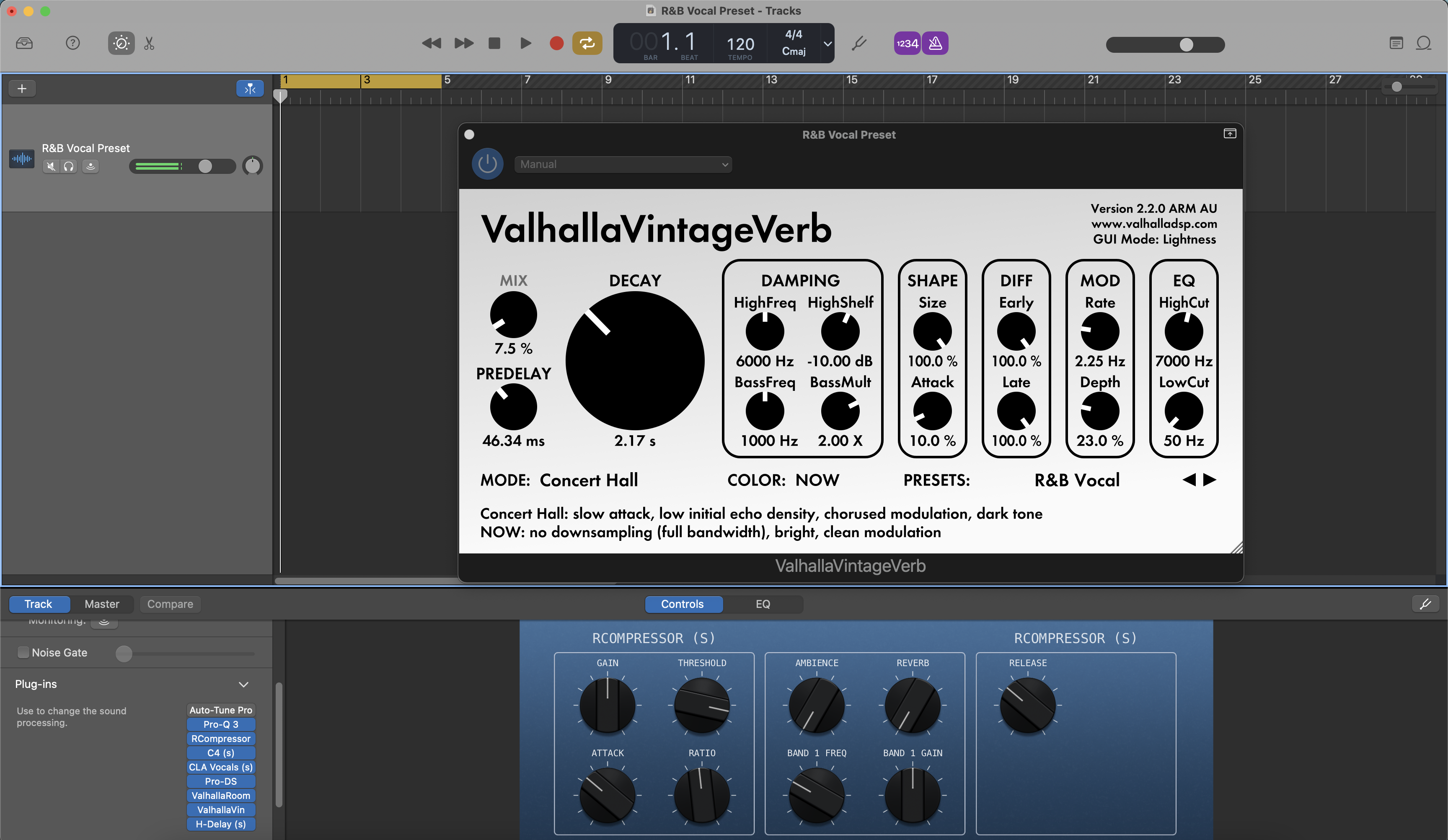
R&B Vocal Preset GarageBand
Type: Vocal Preset
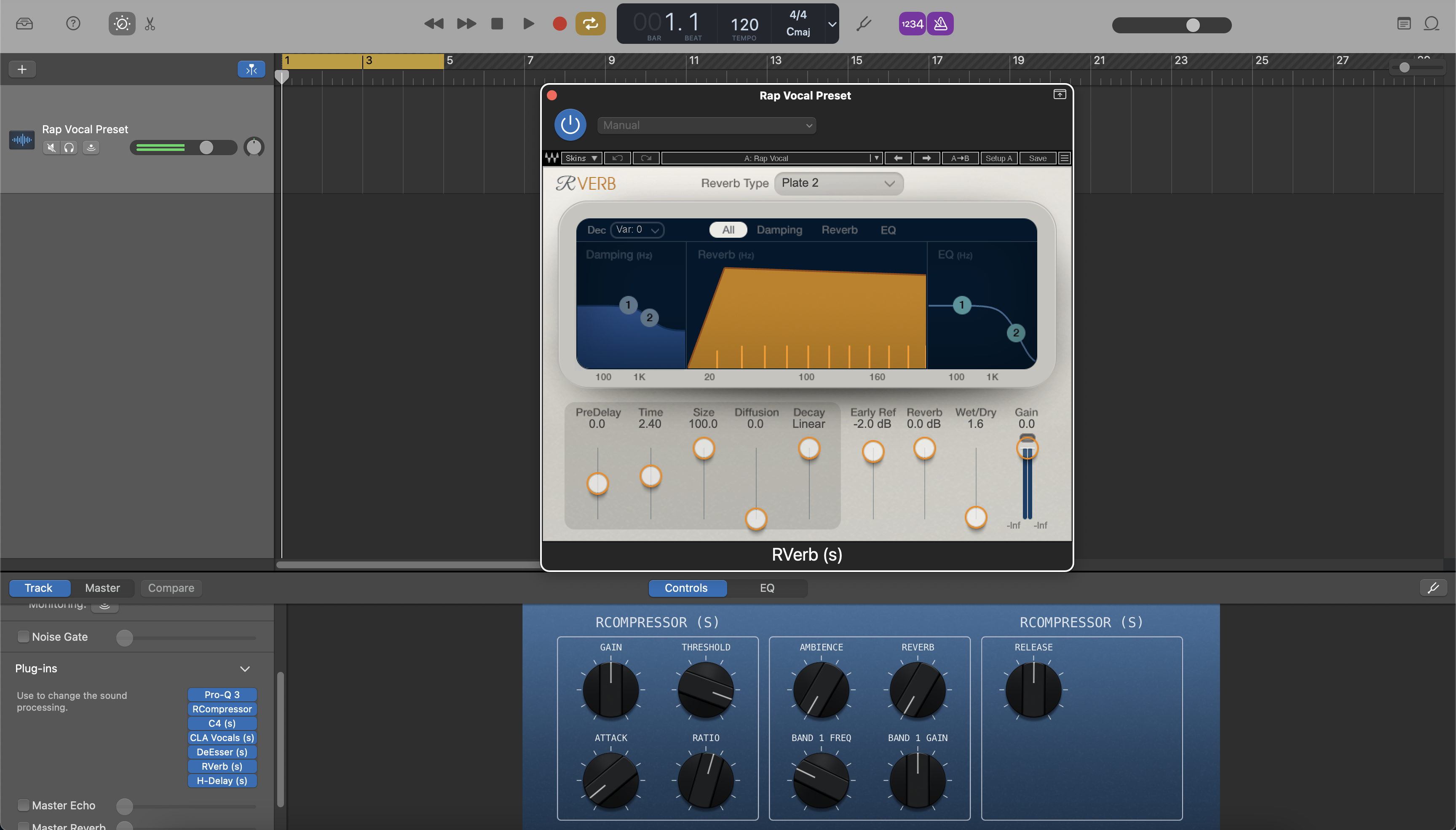
Rap Vocal Preset GarageBand
Type: Vocal Preset
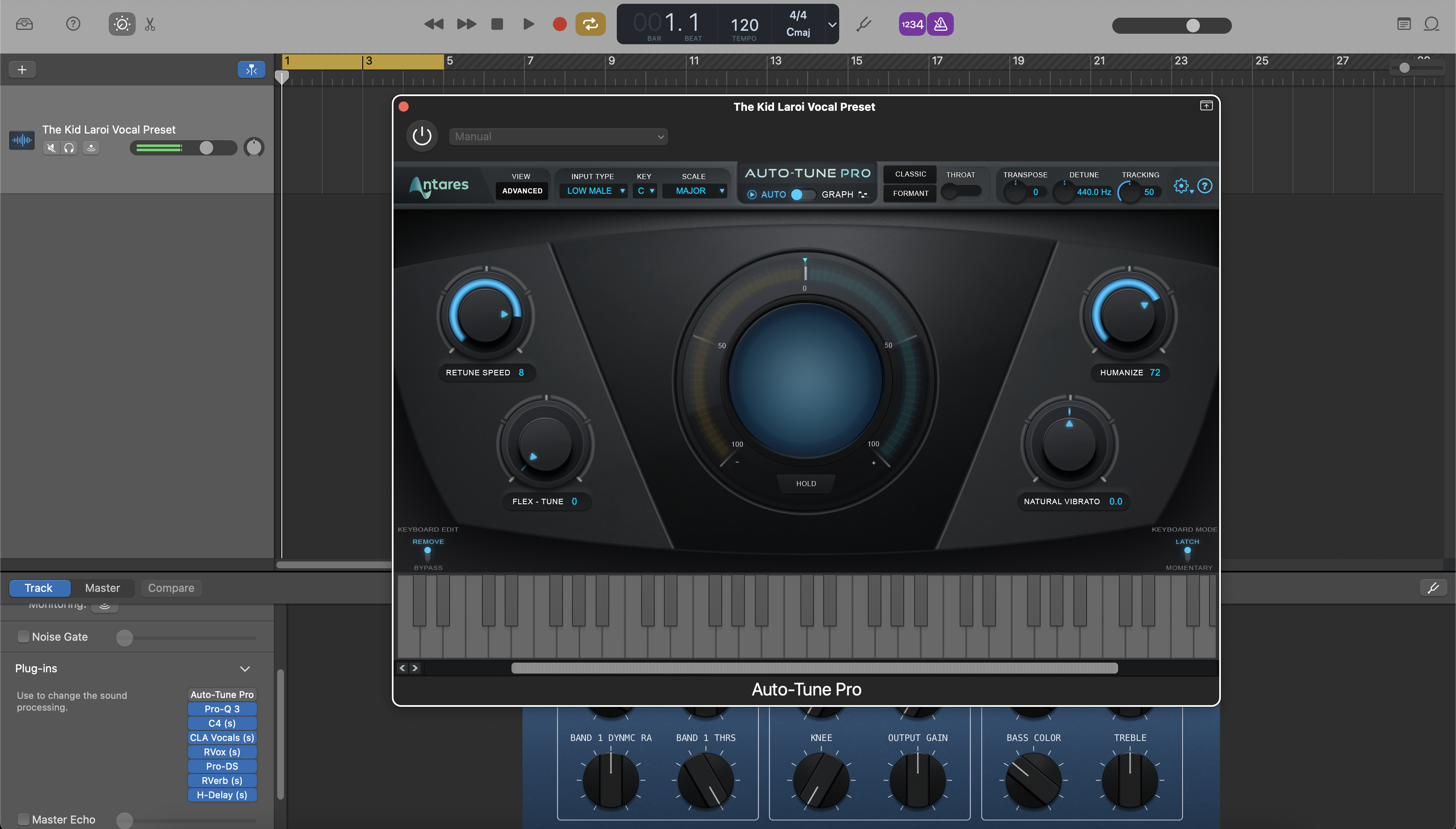
The Kid Laroi Vocal Preset GarageBand
Type: Vocal Preset
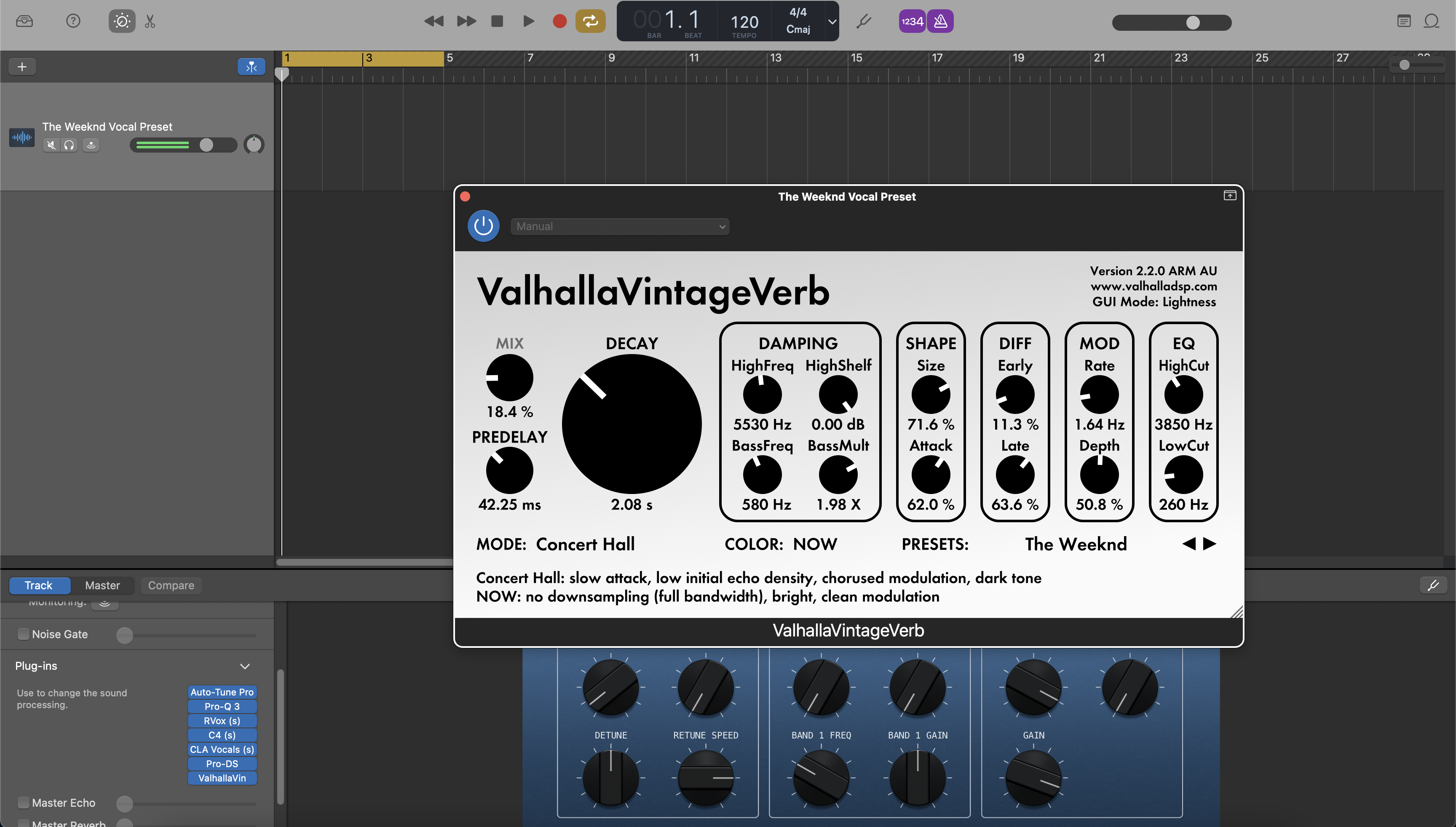
The Weeknd Vocal Preset GarageBand
Type: Vocal Preset
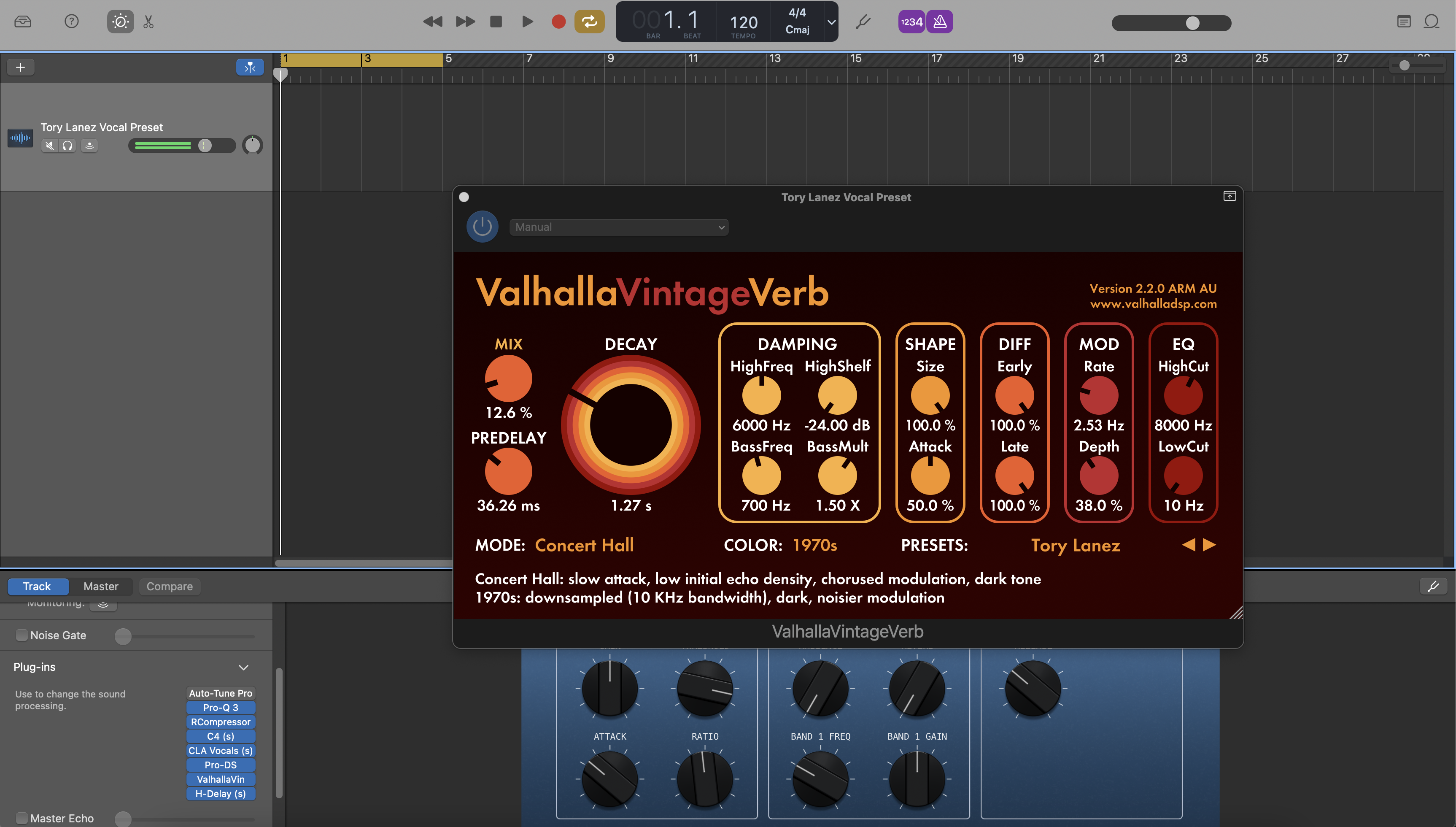
Tory Lanez Vocal Preset GarageBand
FAQs
What are GarageBand vocal presets?
What are GarageBand vocal presets?
GarageBand vocal presets are ready-made vocal starting points that help you load a more polished signal path faster inside GarageBand.
They are especially useful for artists who want a cleaner recording chain without moving into a more complicated DAW right away.
Are these GarageBand products single-track presets, saved chains, or full recording templates?
Are these GarageBand products single-track presets, saved chains, or full recording templates?
Depending on the product, this collection can include focused vocal processing setups or broader template-style workflows.
The product page should make it clear whether the item is meant as a quick vocal chain or a fuller session starting point.
What do I get after I buy a GarageBand vocal preset or template?
What do I get after I buy a GarageBand vocal preset or template?
You receive the digital file format described on the product page, along with any included instructions for getting it into the right GarageBand workflow.
That helps you move from purchase to session setup without guessing how the file is meant to be used.
How fast do I receive the GarageBand files after purchase?
How fast do I receive the GarageBand files after purchase?
GarageBand preset and template products are delivered digitally, so access is usually immediate after checkout.
Most buyers should be able to download the files right away from the order flow.
Do I need any extra plugins to use these GarageBand presets?
Do I need any extra plugins to use these GarageBand presets?
Some products are built to stay inside GarageBand's native toolset, while others may involve outside plugins if the product page says so.
If you want the simplest setup, stock-style options are the best place to start.
Do these GarageBand presets work on Mac only, or also on iPhone and iPad?
Do these GarageBand presets work on Mac only, or also on iPhone and iPad?
The best fit is usually the Mac workflow because file handling and detailed editing are easier there.
Some ideas and chains may still help on iPhone or iPad, but the cleaner setup experience usually comes from the desktop version.
How do I install GarageBand vocal presets or templates?
How do I install GarageBand vocal presets or templates?
The normal process is to load the file into GarageBand's track or project workflow, confirm the vocal input path, and then fine-tune levels until the chain responds correctly.
Once it is working, save a personal version so future sessions open even faster.
Are these GarageBand presets beginner-friendly?
Are these GarageBand presets beginner-friendly?
Yes. GarageBand users often want something simple, fast, and clear, and that is exactly where a well-built preset helps most.
You still learn from the chain, but you avoid the frustration of building everything from zero.
Can I tweak the presets to better fit my voice or recording setup?
Can I tweak the presets to better fit my voice or recording setup?
Yes. Even in a simpler DAW like GarageBand, you should still adjust levels, tone balance, and ambience based on the voice and room.
A preset should speed up the process, not lock you into one exact sound.
What makes these better than GarageBand's default vocal presets?
What makes these better than GarageBand's default vocal presets?
GarageBand's built-in options are useful for quick demos, but BCHILL MIX products aim to give you a more deliberate, artist-focused starting point.
That means less random trial-and-error and a faster path to a vocal that feels cleaner, stronger, and more finished.

Build Your Own Basket

Transform Your Session In Seconds
Instant Session Setup With Our Ready-to-Use Recording Templates & Vocal Presets.


Industry Credits

Westside Boogie

Shontelle

Jarren Benton

DJ Tunez

Vory

Caskey

Rittz

Nia Riley

Eugy

Q Parker
Listen to our Work
R&B
Before
After
Rap
Before
After
Pop
Before
After
Soul
Before
After
Rock
Before
After
Latin
Before
After
GarageBand Vocal Presets: Explained & Features
Introduction to GarageBand Vocal Presets
If you record or mix vocals in GarageBand (Mac or iOS), a well-built preset gives you a modern, repeatable vocal tone without rebuilding the same chain every session. A preset loads a balanced effects path—EQ for tone shaping, compression for level control, de-essing for smooth “s,” and tasteful ambience—so you can capture ideas quickly and keep your sound consistent from demo to release. At BCHILL MIX, our goal is reliable chains that translate on earbuds, phones, and studio monitors while keeping latency low enough to track comfortably.
This guide explains what a vocal preset is in GarageBand, when it helps most, how to install and tweak on Mac and iOS, and style-focused tips for rap, R&B, pop, singer-songwriter, and tuning-heavy genres. You’ll also see how simple session templates (project layouts you save once) complement presets when you want a faster, more organized workflow. Explore the full set here: GarageBand Vocal Presets.
What Is a Vocal Preset in GarageBand?
In GarageBand, a vocal preset is a saved plug-in chain on a vocal track (or bus) with sensible starting settings you refine for your voice, microphone, and song. A balanced “starter” chain often includes:
- High-pass + small surgical EQ to remove rumble and tame harshness.
- Two light compressors in series for steady level without obvious pumping.
- De-esser placed before any high-shelf “air” so consonants stay smooth.
- Optional saturation/exciter for presence and edge.
- Tempo-matched delay + short plate/room for space that supports the lyric.
On Mac, you’ll load the chain in Smart Controls and manage plug-ins per track. On iPhone/iPad, you’ll work in the Plug-ins & EQ tab. Either way, the aim is predictable gain staging and a clean, modern sound you can adjust in seconds instead of reinventing your setup every session. For a broader overview of GarageBand on Mac, see Apple’s user guide (linked below) after you paste this article.
Why Use Presets (Benefits & When They Help)
- Speed: Open, pick a preset, hit record—no more 20-minute plug-in warm-ups.
- Consistency: A calibrated chain keeps tone aligned across singles, EPs, and content series.
- Creative focus: Spend time on performance, doubles/ad-libs, and arrangement—not plumbing.
- Translation: Chains are voiced to stay intelligible on phones/earbuds as well as monitors.
- Low friction: Fewer decisions in the moment—extra useful on laptops or iOS.
Great use cases: fast writing sessions, remote collabs, reels/shorts, weekly singles, voiceovers/podcasts, or any workflow where you want to move from idea to take in minutes.
Stock vs. Premium on GarageBand (What You Actually Need)
Stock-only chains use built-in plug-ins like Channel EQ, Compressor, De-Esser, Noise Gate, and the standard Delay/Reverb effects. They’re portable, CPU-friendly, and open on any Mac or iOS device running GarageBand—perfect for collaboration and budget-friendly rigs.
Premium chains add select third-party Audio Units if you already own them and want extra color (dynamic EQ, specialty saturation, advanced tuning). On iOS, AUv3 plug-in availability varies by device and app version. Many artists keep both: a stock chain for tracking anywhere and a premium chain for polishing at home.
Quick pick: new to presets? Start with a clean “clear vocals” chain. Know your vibe? Load a style-tuned chain (rap, R&B, pop) and tweak thresholds/sends for your voice. To browse options, see our GarageBand Vocal Presets or the broader Vocal Presets collection.
Install & Quick-Start (Mac + iOS)
A. GarageBand for Mac
- Create and name tracks. Add a new Audio track for Lead, plus tracks for Doubles, Harmonies, and Ad-libs. Color-code them and, if you like grouped control, route to a simple Vocal Bus.
- Set input and monitoring. Select your interface input on the Lead track. Record a short test phrase and adjust the preamp so peaks sit safely below clipping. If monitoring feels laggy, keep the tracking chain lean (EQ → light compression → de-ess) and add polish on playback. See Apple’s GarageBand for Mac guide after you finish here.
- Load the preset chain. Open Smart Controls, add EQ → Compressor → De-Esser → optional Saturation → sends to Delay/Reverb. Keep inserts mostly dry while tracking; rely on sends for space so latency and diction stay clean.
- Dial thresholds & sends. Aim for a few dB of clean gain reduction on loudest lines without pumping. If you brighten, revisit the de-esser so “s” remains smooth. Use small, tempo-matched delay and a short plate; automate sends up for hooks.
- Save your setup. Store the chain as a user preset/patch and save a project template so every session opens with consistent routing, headroom, and colors.
B. GarageBand for iPhone/iPad
- Add an Audio Recorder track. Open Plug-ins & EQ and insert EQ → Compressor → De-Esser → Delay/Reverb. Track with a lean chain for comfort; expand during mixdown.
- Set level and key. Record a quick test and set input so peaks don’t clip. If you use tuning-forward styles, set the song key/scale, then apply GarageBand’s Extreme Tuning effect tastefully.
- Save your custom sound. Once your chain is dialed, save it as a Custom sound so it’s available in future projects on your device.
Gain-staging notes (both): record at healthy headroom; avoid red lights at the interface—clipping can’t be fixed. If makeup gain pushes levels too high, trim the clip or effect output instead of slamming the next processor. Keep rough mix peaks sensible so you’re not chasing loudness while recording.
Style Recipes & Fast Fixes (Rap, R&B, Pop, Singer-Songwriter/Podcast, Tuning-Heavy)
Rap Lead (modern punch): Two light compressors in series keep dynamics tight without killing transients; focus intelligibility around the upper mids; add a short slap or small plate for energy without wash. Lift choruses by automating a bit more delay send rather than cranking wet inserts.
Melodic Rap / Trap: Bright but smooth top; a touch of saturation before de-ess for bite; ad-libs with a slightly higher high-pass and a touch more de-ess to keep stacks tidy. Widen hooks by increasing delay feedback slightly and adding pre-delay on the plate.
R&B / Soul: Gentle attack/release, soft air shelf, wider ambience. If boosts add hiss, reduce brightening or add a second, softer de-ess. High-pass backgrounds and use slow, stereo delays that sit behind the lead so the lyric stays upfront.
Pop: Polished highs with careful de-ess, tempo-synced delays for rhythmic space, and a very short room for “glue.” Make decisions at matched loudness so “louder” doesn’t bias A/B checks. In dense arrangements, carve 2–4 kHz so words stay intelligible.
Singer-Songwriter / Podcast (clear voice): Prioritize intelligibility and noise control. Transparent compression, moderate de-ess, and a hint of short ambience if dry feels unnatural. Technique wins: steady mic distance, pop filter, quiet room.
Tuning-heavy styles (hooks & hyperpop): Set the correct key/scale before applying tuning. Start moderate for natural tone; push higher deliberately for the robotic effect. After brightening, re-check sibilance and de-ess so clarity remains.
Common fixes:
- Harsh “s/t”: back off the high-shelf slightly and/or ease the de-esser threshold so it acts only on sibilants.
- Muddy stacks: high-pass doubles/harmonies above the lead and use slightly more de-ess on layers.
- Too much space: start sends low; automate into hooks instead of keeping reverb/delay high throughout.
- Latency while tracking: record with a lean chain; add enhancers on playback; on Mac, close background apps and keep interface/direct monitoring engaged when available.
- Vocals buried in the beat: tame competing instruments around 2–5 kHz or ride the vocal bus up ~1 dB in choruses.
Presets vs. Recording Templates (Workflow That Scales)
Vocal presets shape tone and dynamics on a track or bus. Recording templates give you the whole session layout—pre-named tracks (Lead, Doubles, Harmonies, Ad-libs), color-coding, simple bus routing, cue mix basics, and ready sends—so you can move from idea to take in seconds and keep large sessions organized.
- Open your template to guarantee headroom, meters, and routing are consistent from song to song.
- Load a preset chain that matches the style, then save your tweaked version as your “voice” starting point.
If you bounce between Mac and iOS, keep your settings consistent: reuse the same “Clear / Neutral / Bright” variants and track with a lean chain on mobile. When you want a broader toolkit beyond GarageBand, explore our full set of cross-DAW chains here: Vocal Presets.
Visual Guide: GarageBand Vocal Chain Examples
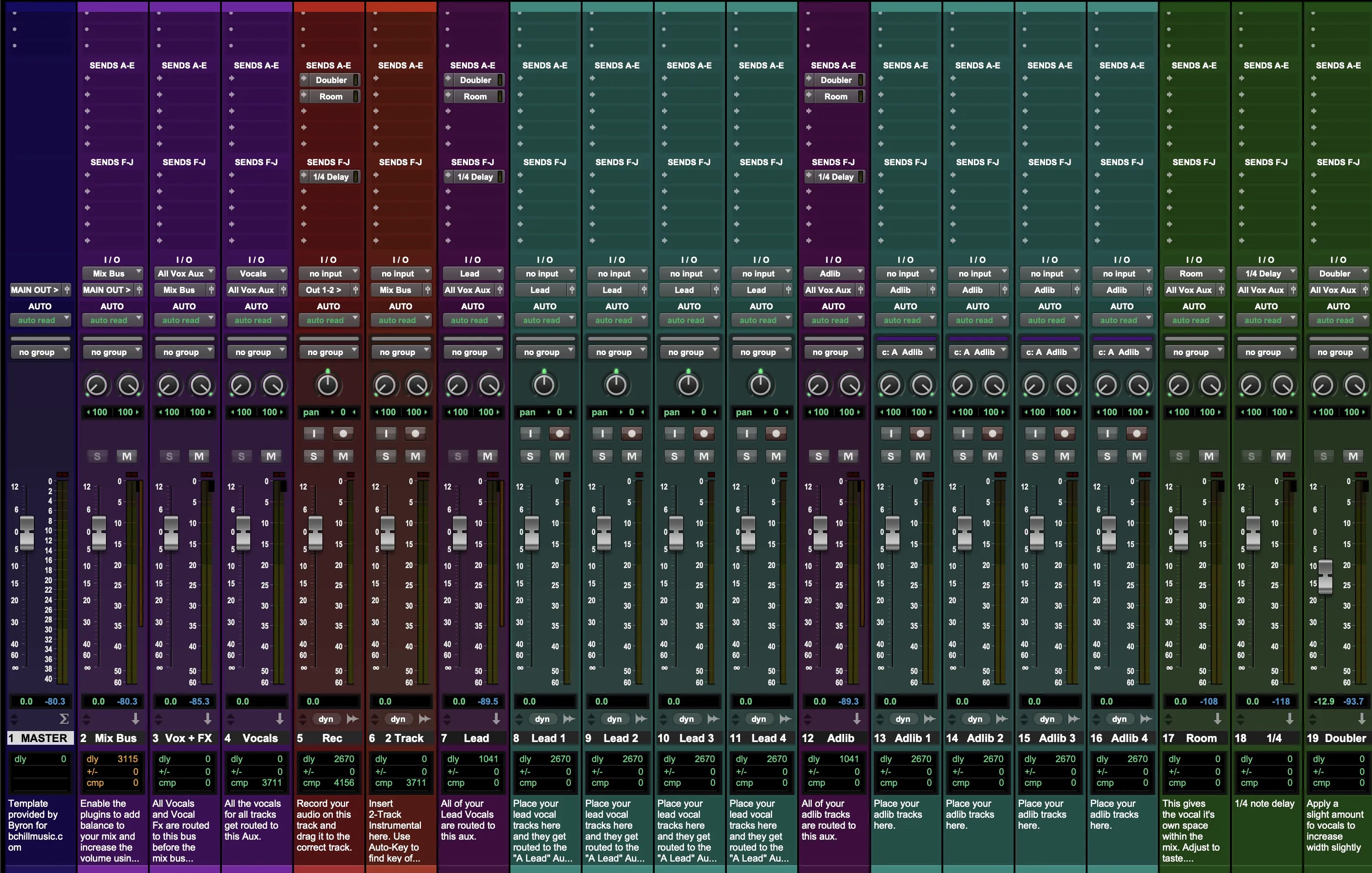
See how our GarageBand vocal chain loads on Lead, Doubles, and Bus tracks. These screenshots show starter settings for rap, R&B, pop, and clear voice—tweak thresholds and sends to fit your mic and room.